Account Settings
Manage your profile, team members, billing, and webhook security settings.
Accessing Account Settings
- Log in to your dashboard
- Click Account in the top navigation
- Select a section from the sidebar
Sections Overview
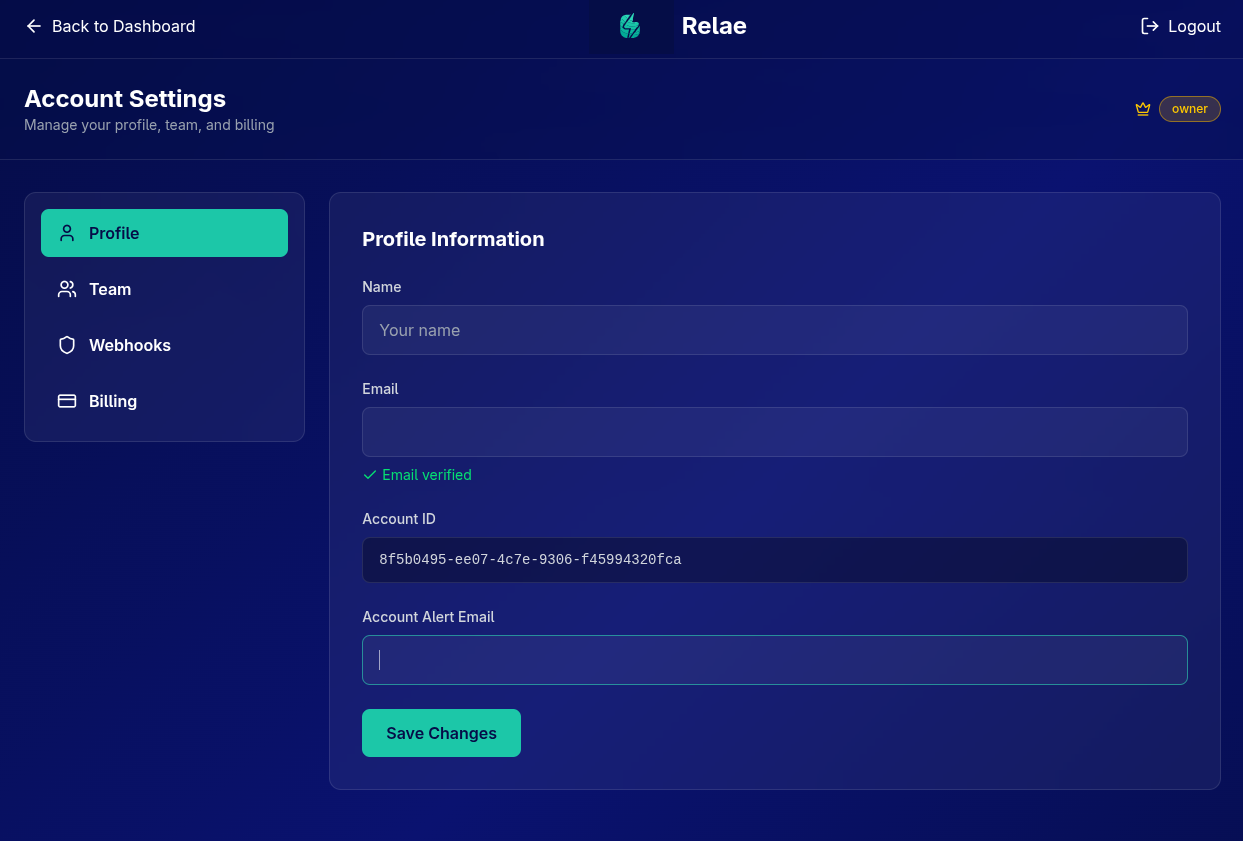
Your account settings are organized into four main sections:
- Profile: Personal information and account details
- Team: Manage team members and roles (Launch tier and above)
- Webhooks: Security settings and signature verification
- Billing: Subscription and payment management (Owner only)
Profile Settings
Manage your personal information and account details.
Personal Information
Name
Your display name shown in the dashboard and team member list.
To update:
- Go to Account → Profile
- Enter your name in the Name field
- Click Save Changes
Email
Your email address for login and notifications.
To update:
- Enter new email in the Email field
- Click Save Changes
- Verify the new email address
Email Verification:
- ✅ Verified: Green checkmark indicates email is verified
- ⚠️ Not Verified: Yellow warning - check your inbox for verification email
Changing your email requires re-verification. You'll receive a verification email at the new address.
Account Information
Account ID
Your unique account identifier.
acc_1234567890abcdef
Uses:
- API authentication
- Support requests
- Webhook tracking
- Billing references
To copy: Click the text to select, then copy to clipboard.
Alert Email (Admin/Owner Only)
Configure where account-level alerts are sent.
Alert types:
- High failure rates
- Billing issues
- Security notifications
- System updates
To configure:
- Enter email in Account Alert Email field
- Click Save Changes
Want alerts sent to multiple people? Use an email distribution list (e.g., alerts@company.com) or set up forwarding rules.
Team Management
Collaborate with your team by inviting members and managing roles.
Team features are available on Launch, Scale, and Enterprise tiers. Upgrade to enable team collaboration →
Team Roles
Relae has four team roles with different permissions:
Owner 👑
Permissions:
- ✅ Full account access
- ✅ Manage billing and subscription
- ✅ Invite and remove all team members
- ✅ Assign admin role
- ✅ View and manage webhooks
- ✅ Configure destinations
- ✅ View analytics
Limitations:
- Only one owner per account
- Cannot be removed (transfer ownership first)
Admin 🛡️
Permissions:
- ✅ Invite and remove members
- ✅ View and manage webhooks
- ✅ Configure destinations
- ✅ View analytics
- ✅ Update account alert email
Limitations:
- ❌ Cannot manage billing
- ❌ Cannot remove owner
- ❌ Cannot assign admin role (owner only)
Member ⚙️
Permissions:
- ✅ View webhooks
- ✅ Manage Dead Letter Queue
- ✅ Retry failed webhooks
- ✅ Configure destinations
- ✅ View analytics
Limitations:
- ❌ Cannot invite users
- ❌ Cannot remove team members
- ❌ Cannot manage billing
Read-Only 👁️ (Scale & Enterprise)
Permissions:
- ✅ View webhooks
- ✅ View destinations
- ✅ View analytics
Limitations:
- ❌ Cannot modify anything
- ❌ Cannot retry webhooks
- ❌ Cannot invite users
- ❌ Perfect for stakeholders and auditors
- Developers: Member role
- DevOps/SRE: Admin role
- Managers/Stakeholders: Read-only role
- Finance/Billing: Keep as owner or admin
Inviting Team Members
Prerequisites:
- Admin or Owner role
- Launch tier or above
Steps:
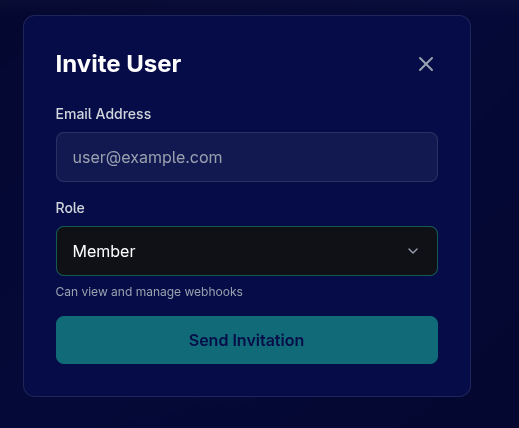
- Go to Account → Team
- Click + Invite User
- Enter the user's email address
- Select their role:
- Admin (Owner only)
- Member
- Read-Only (Scale/Enterprise)
- Click Send Invitation
What happens next:
- User receives invitation email
- They click the verification link
- Create a password (if new to Relae)
- Gain access to your account
Invitations expire after 7 days. If needed, remove and re-invite the user.
Managing Team Members
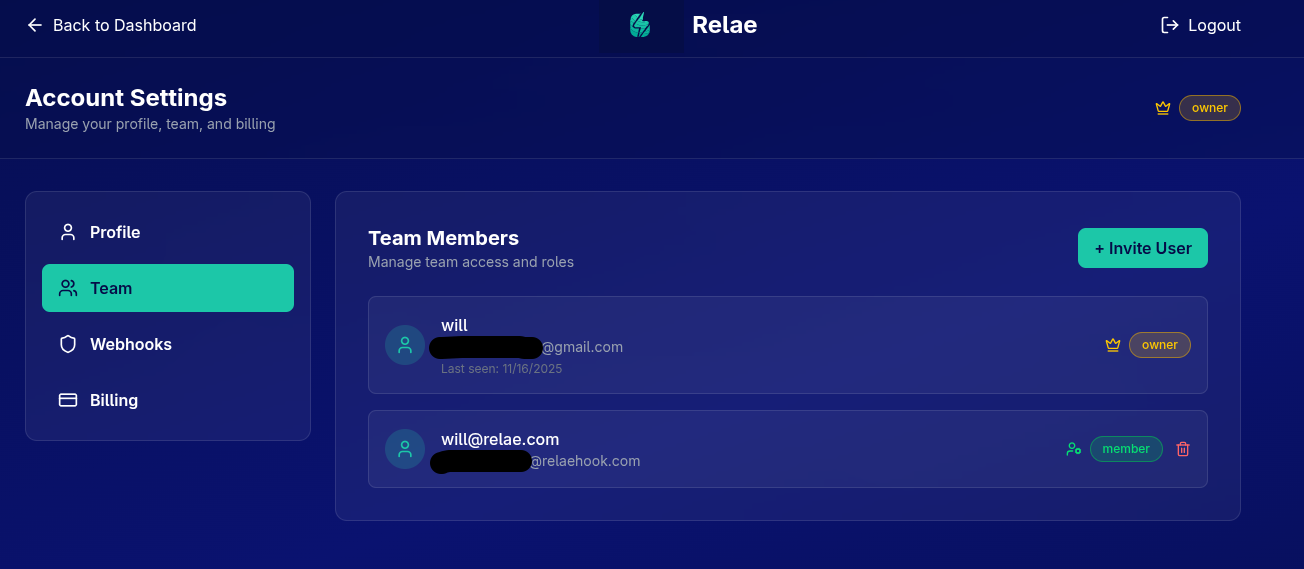
View all team members with their:
- Name and email
- Current role
- Last seen timestamp
- Verification status
Removing Team Members
Prerequisites:
- Admin or Owner role
- Cannot remove yourself
- Cannot remove owner (unless you are owner)
Steps:
- Find the team member
- Click the Trash icon (🗑️)
- Confirm removal
What happens:
- User loses access immediately
- Cannot log in to the account
- Any active sessions are invalidated
- Can be re-invited later
Removed members lose access immediately. Make sure to remove them from any shared credentials or documentation.
Role Indicators
Each team member has a visual role badge:
- 👑 Owner: Yellow badge
- 🛡️ Admin: Blue badge
- ⚙️ Member: Green badge
- 👁️ Read-Only: Gray badge
Webhook Security
Configure security settings for webhooks forwarded from Relae to your endpoints.
Relae Webhook Secret
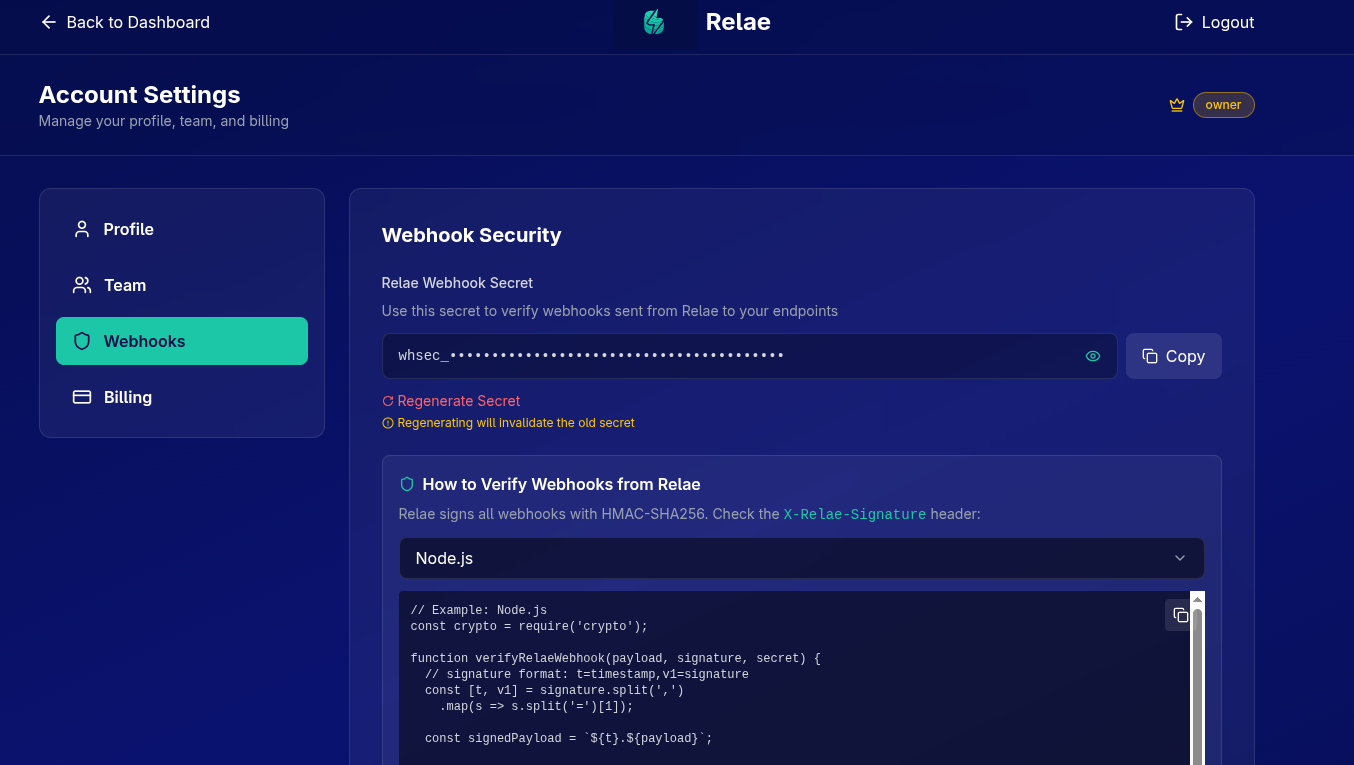
Your unique secret for verifying webhooks from Relae.
Format: whsec_ followed by 48 random characters
Example:
whsec_abc123def456ghi789jkl012mno345pqr678stu901vwx234yz
Viewing Your Secret
- Go to Account → Webhooks
- Find Relae Webhook Secret section
- Click the Eye icon (👁️) to reveal
- Click again to hide
Never commit your webhook secret to version control or share it publicly. Always use environment variables.
Copying Your Secret
Option 1: Copy Button
- Click the Copy button
- Secret is copied to clipboard
- Paste into your environment variables
Option 2: Manual Copy
- Click the Eye icon to reveal
- Select and copy the text
- Click Eye again to hide
Using Your Secret
Store as an environment variable:
Linux/Mac:
export RELAE_WEBHOOK_SECRET="whsec_abc123..."
Windows (PowerShell):
$env:RELAE_WEBHOOK_SECRET="whsec_abc123..."
Docker:
environment:
  - RELAE_WEBHOOK_SECRET=whsec_abc123...
Node.js (.env file):
RELAE_WEBHOOK_SECRET=whsec_abc123...
Then verify webhooks in your application:
const signature = req.headers["x-relae-signature"];
const secret = process.env.RELAE_WEBHOOK_SECRET;

if (!verifyRelaeWebhook(payload, signature, secret)) {
  return res.status(401).json({ error: "Invalid signature" });
}
See complete verification examples →
Regenerating Your Secret
When to regenerate:
- 🔐 Secret was exposed or committed to Git
- 🔄 Regular security rotation (every 90 days)
- 👤 Team member with access leaves
- 🚨 Suspected security breach
Steps:
- Go to Account → Webhooks
- Click Regenerate Secret
- Confirm the action
Regenerating immediately invalidates the old secret. Update all your endpoints before regenerating!
Recommended process:
- Deploy new secret to staging environment
- Test webhook verification works
- Deploy to production
- Wait for all instances to update
- Then regenerate secret in Relae
- Monitor for verification failures
Code Examples by Language
The Account → Webhooks page includes copy-paste verification code in:
- Node.js (Express)
- Python (Flask)
- Go
- Ruby (Sinatra)
- PHP
- Java (Spring Boot)
- C# (ASP.NET Core)
To use:
- Select your language from dropdown
- Review the code
- Click Copy button
- Paste into your application
- Update the secret in environment variables
Billing & Subscription
Manage your subscription, payment methods, and billing information.
Only account owners can access billing settings. Other team members see a restricted view.
Current Plan
View your active subscription tier and status:
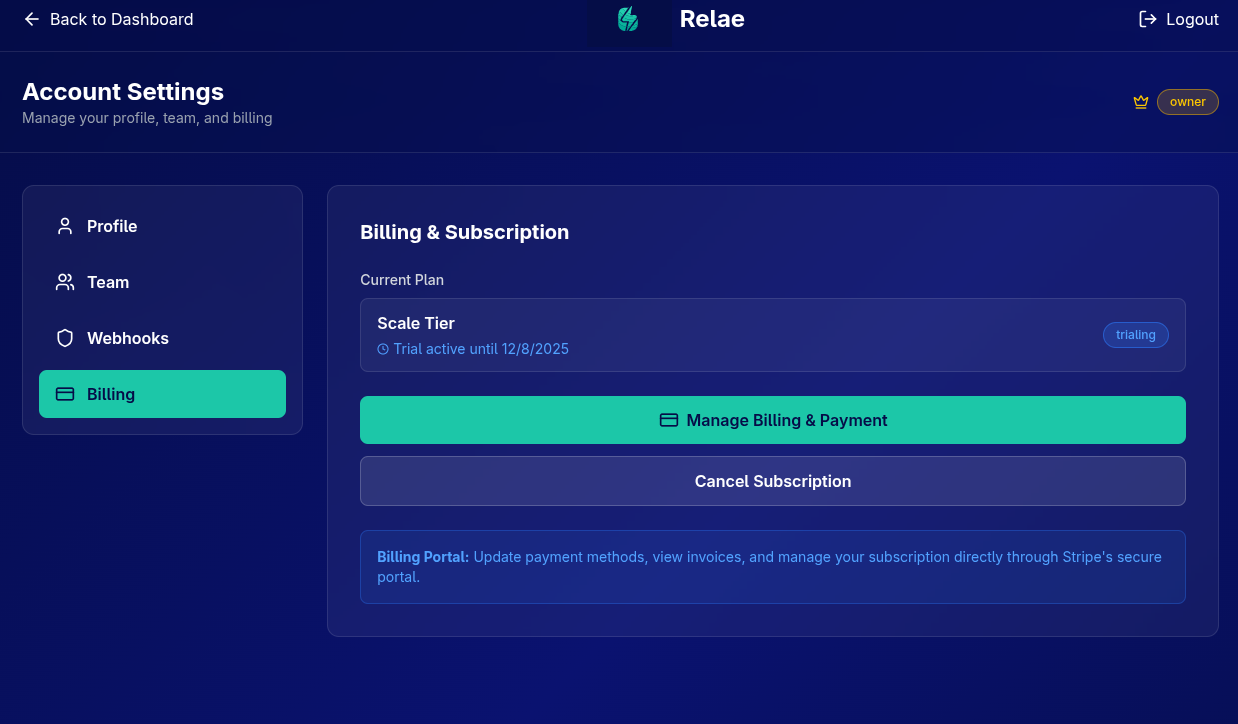
Information shown:
- Tier: Free, Launch, Scale, or Enterprise
- Status: Active, Trialing, or Inactive
- Trial end date (if applicable)
- Cancellation date (if subscription is ending)
Status badges:
- 🟢 Active: Subscription is active and billing normally
- 🔵 Trialing: In trial period, no charges yet
- ⚠️ Canceling: Will end at period close
- ⚫ Inactive: No active subscription
Managing Billing
Click Manage Billing & Payment to access Stripe's secure billing portal.
What you can do:
- Update credit card
- View payment history
- Download invoices
- Update billing address
- Add tax ID/VAT number
Security:
- Managed by Stripe (PCI compliant)
- Relae never sees your card details
- All data encrypted in transit
Upgrading Your Plan
From Free to Launch/Scale:
- Click Upgrade to Launch → button
- Redirected to Stripe checkout
- Enter payment details
- Complete checkout
- Instant access to new features
From Launch to Scale:
- Click Upgrade to Scale → button
- Prorated charge for remainder of billing period
- Immediate upgrade
Plan comparison:
| Feature | Free | Launch | Scale |
|---|---|---|---|
| Events/month | 10K | 100K | 500K |
| Retention | 7 days | 14 days | 30 days |
| Team members | ❌ | ✅ | ✅ |
| Analytics | ❌ | ❌ | ✅ |
| Read-only users | ❌ | ❌ | ✅ |
Canceling Subscription
Steps:
- Go to Account → Billing
- Click Cancel Subscription
- Confirm cancellation
What happens:
- ✅ Keep access until end of billing period
- ✅ No future charges
- ⚠️ Data retention follows tier limits
- ⚠️ Downgraded to Free at period end
Example:
Today: December 1
Billing period ends: December 31
Cancel today → Keep access until Dec 31
Jan 1 → Downgrade to Free tier
You can reactivate before the period ends. Click Reactivate Subscription in billing settings.
Reactivating Subscription
If you canceled but want to continue:
- Go to Account → Billing
- Click Reactivate Subscription
- Subscription continues normally
- Next billing cycle proceeds as scheduled
Must reactivate before: End of current billing period
Trial Period
New paid subscriptions include:
- 14-day free trial
- Full access to tier features
- No credit card required upfront (some tiers)
- Cancel anytime during trial
Trial status shown in billing:
Trial active until January 15, 2024
After trial ends:
- Automatic billing starts
- Subscription becomes active
- Keep same tier and features
Billing Cycle
When you're charged:
- Monthly subscriptions: Same day each month
- First charge: After trial or immediately (if no trial)
- Upgrades: Prorated for current period
Example monthly cycle:
Dec 1: Subscribe to Launch ($35/mo)
Dec 15: Upgrade to Scale ($65/mo)
Dec 15: Charged $25 prorated (half of $50 difference)
Jan 1: Charged $65 (full Scale tier price)
Payment Failed
If payment fails:
- You'll receive email notification
- Stripe retries automatically (3 times)
- Update payment method in billing portal
- Subscription suspends if all retries fail
To prevent:
- Keep card details updated
- Set up backup payment method
- Monitor billing email alerts
Invoices & Receipts
Accessing invoices:
- Click Manage Billing & Payment
- View Billing history in Stripe portal
- Download PDF invoices
- Email receipts
What's included:
- Invoice number
- Date and amount charged
- Payment method used
- Billing address
- Line items (subscription, overage)
Overage Charges
If you exceed your plan's event limit:
Launch tier:
- Base: 100,000 events/month
- Overage: $0.00015 per additional event
- Example: 120,000 events = $35 + (20,000 × $0.00015) = $38
Scale tier:
- Base: 500,000 events/month
- Overage: $0.0001 per additional event
- Example: 550,000 events = $65 + (50,000 × $0.0001) = $70
Viewing usage: Check current usage in Analytics dashboard →
Best Practices
Security
- ✅ Enable 2FA on your email account
- ✅ Use strong, unique password for Relae
- ✅ Rotate webhook secret every 90 days
- ✅ Limit team members to those who need access
- ✅ Use read-only role for stakeholders
- ✅ Remove ex-employees immediately
Team Management
- ✅ Document who has access and why
- ✅ Review team members quarterly
- ✅ Use appropriate roles (don't over-permission)
- ✅ Set up alert email to distribution list
- ✅ Train team on webhook management
Billing
- ✅ Monitor usage regularly in analytics
- ✅ Set calendar reminder for trial end
- ✅ Keep payment method updated
- ✅ Download invoices for accounting
- ✅ Plan upgrades before hitting limits
Troubleshooting
Can't Access Account Settings
Issue: Account button not showing
Solutions:
- Make sure you're logged in
- Check you're not on landing page
- Refresh the page
- Try different browser
- Clear cache and cookies
Can't Invite Team Members
Issue: No "Invite User" button
Possible causes:
- ❌ On Free tier (upgrade required)
- ❌ Not admin or owner role
- ❌ Account not verified
Solution: Upgrade to Launch tier or contact owner for role change
Webhook Secret Not Working
Issue: Signature verification failing
Check:
- ✅ Using correct secret (not vendor secret)
- ✅ Secret stored as environment variable
- ✅ Application restarted after updating secret
- ✅ Using correct verification code
- ✅ Headers being read correctly
See signature verification guide →
Payment Issues
Issue: Payment declined or failing
Steps:
- Check card hasn't expired
- Verify sufficient funds
- Update payment method in billing portal
- Contact your bank if card is being blocked
- Try different payment method
Still having issues? Email support@relaehook.com with:
- Account ID
- Error message
- Last 4 digits of card (if applicable)
Can't Cancel Subscription
Issue: No cancel button or error when canceling
Possible causes:
- ❌ Not the account owner
- ❌ Already canceled
- ❌ No active subscription
Solution:
- Ask owner to cancel
- Or check billing status in Stripe portal
Frequently Asked Questions
Can I change the account owner?
Not currently. If you need to transfer ownership:
- Invite new owner as admin
- They should subscribe on new account
- Migrate destinations
- Cancel original account
Contact support@relaehook.com for assistance.
How many team members can I have?
Launch & Scale: Unlimited team members
Role limits:
- Owner: 1
- Admin: Unlimited
- Member: Unlimited
- Read-only: Unlimited (Scale/Enterprise only)
What happens if I downgrade?
Immediate effects:
- Keep current features until period end
- No new charges for lower tier yet
At period end:
- Features restricted to new tier
- Data retention reduced (older events deleted)
- Team access may be limited (Free tier)
Can I get a refund?
Refunds are handled case-by-case:
- Trial cancellations: No charge, no refund needed
- Service issues: Contact support
- Change of mind: Generally no refunds, but ask
Email support@relaehook.com
Do you offer discounts?
Startup/nonprofit discounts: Contact support@relaehook.com with:
- Company details
- Current traction/usage
- How you heard about Relae
Annual billing: Email for annual pricing (20% discount typical)
Is my payment information secure?
Yes!
- Payments processed by Stripe
- Relae never sees card numbers
- Industry-standard encryption
Next Steps
Need Help?
- 📧 Email: support@relaehook.com
- 💬 Questions about account settings
- 🔐 Security concerns
- 💳 Billing inquiries